


Overview
Welcome to the AI/ML NIST Evaluation Platform
If you have logged in for the first time, you have just created an User account that is controlled by you and should see the Dashboard page.
This help section describes the rest of the registration process and then leads to the next section of making a submission to the scoring server.
First Steps
As a new user you will have to do the following
- Fill out basic user information
- Agree to the rules of behaviour
- Join/Make a Team
- Join a Track
- Fill out Licenses
Editing Account Information and User Profile
When you first register it will require you to fill out some basic information about yourself and then agree to the rules of behaviour for the platform.
To later edit your User Profile click on your
email-address on the top right and select
User Info. This will load the User Info Page:
- Press the
Edit Profilebutton on the right. - On the profile page, please fill in your information for all fields.
- Press
Submit
Creating and Joining Teams
Team Ownership
The first step is to become a member of a
Team. This can be for example your
Laboratory-, Faculty- or a
Company-name. Becoming a member of a Team can
be done by either creating a new Team
or joining an existing Team created by
your Team-Lead. If you wish to represent your
Team please create it. You will become the
owner of the Team. To do so navigate to the Teams page
and click New Team or Join Team:
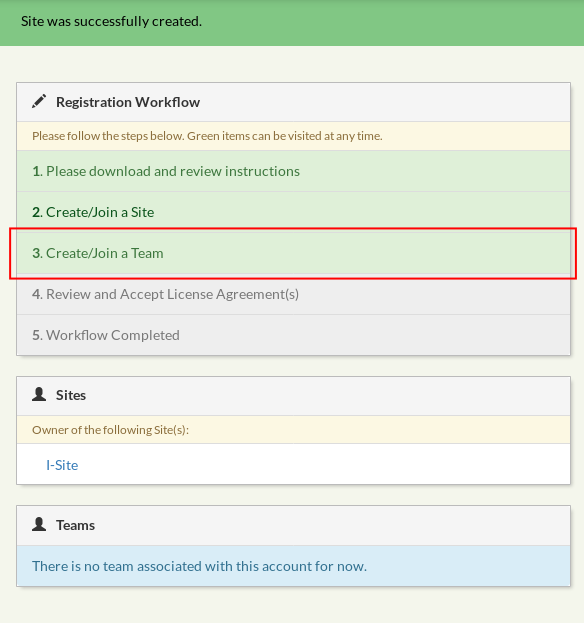
New Team Page
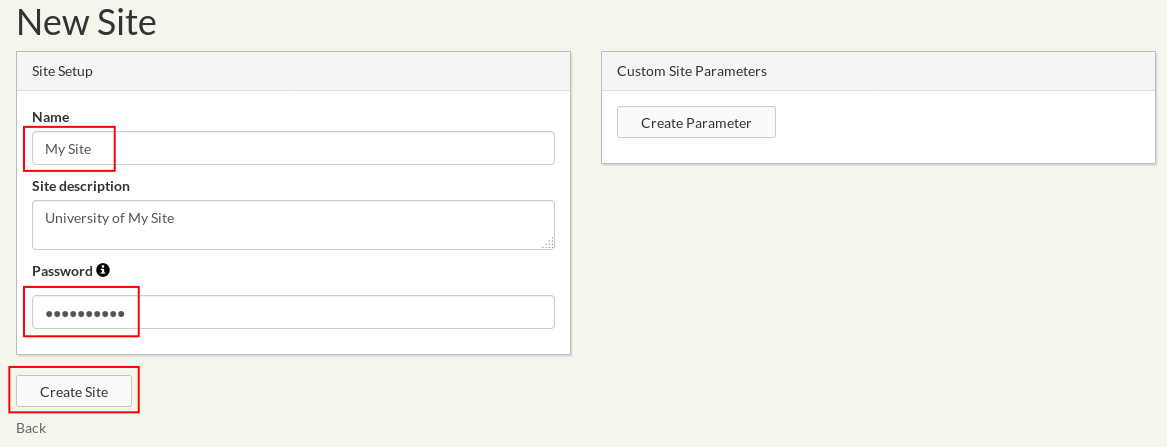
On the Team creation page please provide the
team name, description and password (your
team password, which will allow collaborators
to join your team in order to make a
submission). Please provide at least 10
characters for the password. After reviewing
your information click the Create
Team button to create the Team.
Join Team Page
Section missing
After creating a Team, follow the same procedure to create a Group.
Managing Licenses
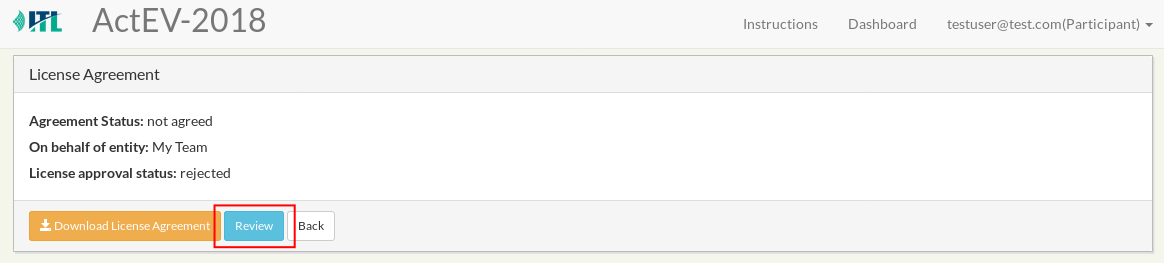
After joining a track with a team, the Platform will automatically create License Agreements for that track/team. Please review the agreements by clicking the License Agreements tab on the left side of the User Dashboard page. card:
Please download any relevant license agreement or evaluation plan, review it and then click ‘Review’ to enter the license review card:
In order to accept the license please click the CHECKBOX and then press the ‘Update License Agreement’ button:
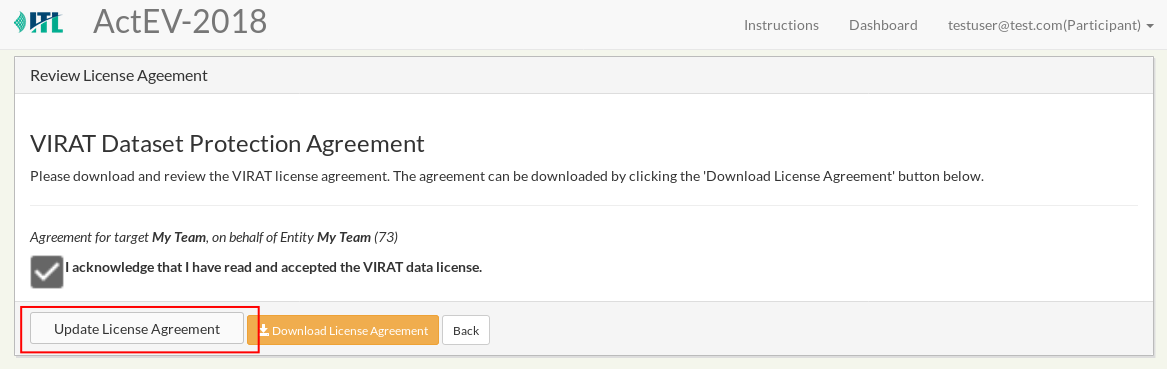
Once the license have been acknowledged, you will be able to access the dataset instruction card with download information (and decryption keys if applicable). See next section.
Evaluation Tasks and Task Registration
Your system submissions are tied to a specific Task. A task can be composed of multiple Phases, for example a Dryrun phase and a Main Evaluation Phase, or an evaluation with multiple staged Checkpoints. In order to make a submission any Entity must be registered to at least one Task. This registration process can be done either automatically as per Evaluation setup or might have to be performed manually.
Accessing Datasets
After completing the license agreement, credentials and instructions to access the data will be available by clicking the links on the Datasets section of the web team.